SVG Files for Cricut: The Complete Beginner’s Guide (2026)
SVG files for Cricut are digital design files used with Cricut machines to create intricate cut designs on various materials. This complete guide covers the basics of SVG files, essential tools and software like Cricut Design Space, SVG file formats, and the best platforms to source SVG designs. Additionally, you’ll learn how to use these files step-by-step and explore popular projects to get started on your crafting journey.
💡 Ready to get started with SVG? Browse thousands of premium designs and templates on Creative Fabrica — the best resource for crafters and creators.
What Is SVG Files for Cricut? (Quick Overview)
SVG files for Cricut are Scalable Vector Graphics files used specifically with Cricut machines, which are popular among DIY crafters for cutting designs onto various materials such as vinyl, paper, and fabric. These files are crucial for those who wish to create detailed and precise craft projects. Crafters, DIY enthusiasts, and small business owners rely on SVG files to bring their creative visions to life effortlessly.
The significance of SVG files lies in their scalability and precision, which ensures that designs remain crisp regardless of size. The files are created using vector paths instead of pixels, allowing for seamless resizing without loss of quality.
- Label: Precision cutting of intricate designs.
- Label: Customizable for personalized projects.
- Label: Compatible with various crafting materials.
- Label: Easy to modify and edit with software tools.
- Label: Ideal for both beginners and experienced crafters.
Getting Started with SVG Files for Cricut — What You Need
- Cricut Machine: Essential for cutting your designs with precision.
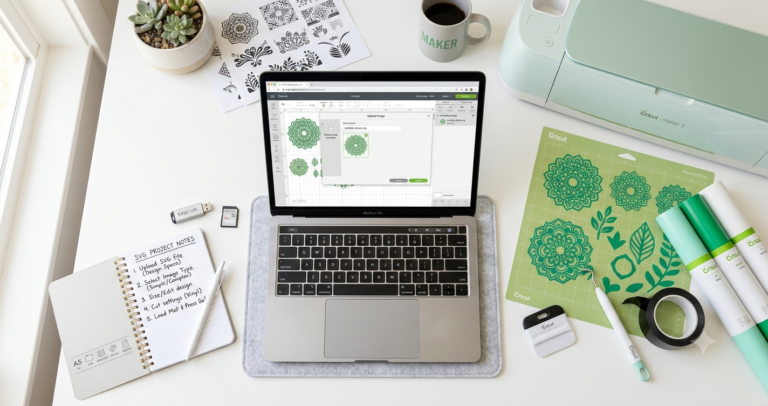
- Cricut Design Space: The software platform to upload and edit SVG files for your projects.
- Computer or Tablet: Use for accessing Cricut Design Space and managing your design files.
- SVG File: The core design file format needed for creating your projects.
- Material Supplies: Includes vinyl, paper, or fabric to bring your SVG designs to life.
Which SVG File Formats/Types Should You Use?
Understanding the different file formats for SVG is crucial for ensuring compatibility with your Cricut machine and achieving the best results.
| Format/Type | Best For | Compatible With | Key Advantage |
|---|---|---|---|
| SVG | Cricut Design | All Cricut Machines | Scalability |
| DXF | Detailed CAD Designs | Cricut Design Space | Compatibility with CAD |
| EPS | Professional Printing | Adobe Illustrator | High Resolution |
| PNG | Graphics with Transparency | Cricut Design Space | Transparency |
For a deeper understanding and comparison of these file formats, check out this detailed guide on SVG vs DXF vs EPS vs PNG for Cricut.
Where Can You Find the Best SVG Files for Cricut?
There are numerous platforms where you can find high-quality SVG files for Cricut to enhance your crafting projects.
- Etsy: A popular marketplace where independent designers sell custom SVG files, perfect for personalized projects.
- Design Bundles: Provides bundle deals and discounts on high-quality SVG designs, making it budget-friendly for crafters.
- Creative Fabrica: Offers a vast collection of premium designs, ideal for both beginners and experienced crafters looking for unique and professional templates.
- Silhouette Design Store: Offers a variety of designs that are compatible with both Cricut and Silhouette machines.
- LoveSVG: Known for free SVG designs, allowing crafters to experiment without initial costs.
How to Use SVG Files for Cricut — Step by Step
- Download SVG File: Begin by selecting and downloading your desired SVG file from a reputable platform.
- Open Cricut Design Space: Launch the Cricut Design Space software on your computer or tablet.
- Upload SVG File: Click ‘Upload’ in Cricut Design Space and select the SVG file from your device.
- Prepare Design: Use the editing tools to adjust size and layout, ensuring the design fits your material.
- Select Material Settings: Choose your material from the dropdown menu to set appropriate cutting parameters.
- Start Cutting: Load the material into your Cricut machine and press ‘Go’ to begin cutting.
- Assemble Project: Once the design is cut, carefully remove it from the mat and assemble your final project.
What Are the Most Popular SVG Files for Cricut Projects/Types?
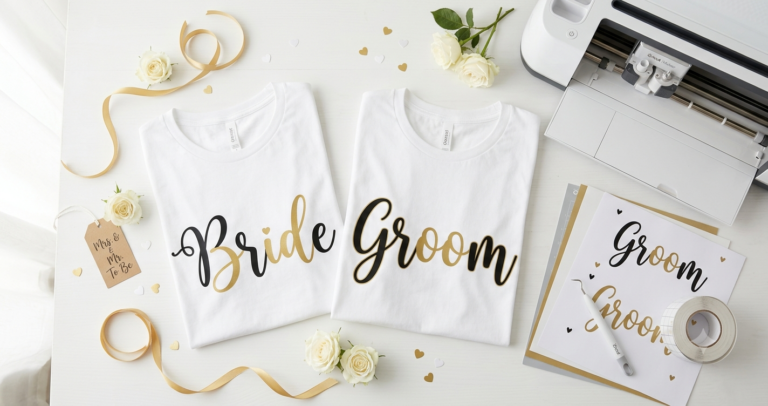
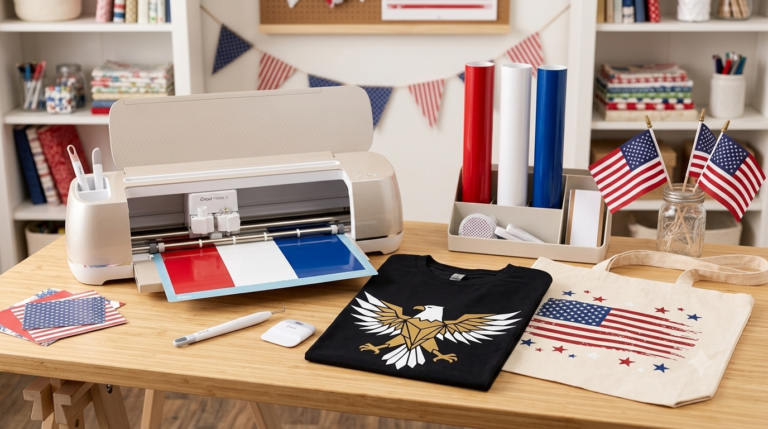
- Custom T-Shirts: Personalize apparel with unique designs for every occasion.
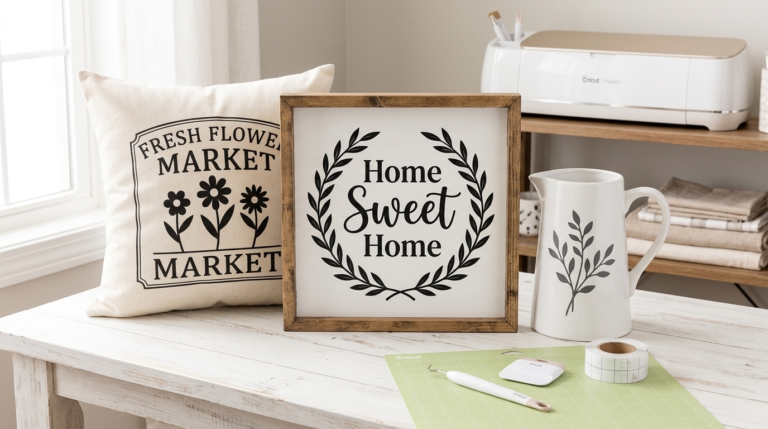
- Home Decor Signs: Create farmhouse-inspired signs to adorn your living space.
- Greeting Cards: Design and cut intricate cards for holidays and special events.
- Vinyl Decals: Perfect for decorating windows, laptops, and bottles with creative graphics.
- Scrapbooking Elements: Enhance your scrapbook pages with custom cutouts and embellishments.
- 3D Paper Crafts: Build dimensional projects like floral arrangements and ornaments.
- Personalized Gifts: Make custom gifts with names or messages for friends and family.
Tips and Tricks for Better Results
Use Quality Materials: Always opt for high-quality materials to ensure clean cuts and professional results.
Test Cut: Do a test cut on a small piece of material to ensure settings are correct before starting your main project.
Keep Your Blades Sharp: Regularly replace or sharpen your Cricut blades to maintain precision cutting.
Organize Files: Create a folder system on your computer to keep track of your SVG files for easy access.
Experiment with Colors: Don’t hesitate to try different color schemes to make your projects stand out.
Frequently Asked Questions
What is an SVG file?
An SVG file is a Scalable Vector Graphics file, a type of vector image format that allows designs to be scaled without losing quality, making it ideal for precision cutting with Cricut machines.
Can I use SVG files with Silhouette machines?
Yes, SVG files can be used with Silhouette machines, but you may need to use the Silhouette Studio Designer Edition software for compatibility.
How do I convert images to SVG files?
Use design software like Adobe Illustrator or free online converters to trace and convert images into SVG files suitable for Cricut projects.
Why are my SVG files not uploading to Cricut Design Space?
Ensure the file is in SVG format and not corrupted. If issues persist, try clearing your browser cache or updating the Design Space software.
Do I need internet access to use Cricut Design Space?
Yes, Cricut Design Space requires an internet connection for most features, though some offline capabilities are available in the desktop version.
How can I make my own SVG files?
Design your own SVG files using vector graphic software like Inkscape or Adobe Illustrator, where you can create and save your designs in SVG format.
Are there free resources for SVG files?
Yes, many sites offer free SVG files for personal use, including LoveSVG and some Etsy shops, though commercial use may require a purchase.
Explore Our SVG Guides
Ready to go deeper? Here are all our detailed SVG guides to help you find the perfect designs for every project:
🎃 Holiday & Seasonal SVG
- America 250th Anniversary SVG Files for Cricut — Best 1776-2026 Designs
- Patriotic Eagle SVG Files for Cricut — America 250 Designs
- 4th of July SVG Bundle for Cricut — Best Patriotic Designs
- Halloween SVG Bundle for Cricut Maker — Best Spooky Designs
- How to Cut Free Halloween SVG Files on Cricut Explore Air 2
- Free Halloween SVG Files for Cricut Explore Air 2
- Wedding SVG Files for Cricut — Elegant Designs
🌸 Floral, Farmhouse & More
- Farmhouse SVG Cut Files for Cricut Home Decor
- Monogram SVG Files for Cricut — Best Fonts & Designs
- Birthday SVG Files for Cricut — Fun Cake & Party Designs
- Dog Mom SVG Files for Cricut — Best Designs for Pet Lovers
- SVG vs DXF vs EPS vs PNG for Cricut: Which Format Should You Use?
Final Thoughts
SVG files for Cricut are an invaluable resource for crafting enthusiasts looking to create stunning and precise designs. Whether you’re personalizing a t-shirt or making home decor, SVG files offer endless possibilities for your creative projects. Remember, sourcing high-quality SVG files from reputable platforms, like Creative Fabrica, is key to achieving the best results. Embrace the world of SVG files and let your creativity flow!
Disclosure: This post contains affiliate links. If you purchase through our links, we may earn a small commission at no extra cost to you. We only recommend products we genuinely believe in.