How to Upload SVG Files to Cricut Design Space — Step by Step
Learning how to upload SVG files to Cricut Design Space is the very first step to mastering your cutting machine. Whether you are using free designs or premium vector assets from Creative Fabrica, this step-by-step tutorial will make your crafting process quick and efficient.Whether you’re crafting vinyl decals, personalized gifts, or intricate paper designs, understanding how to upload SVG files will enhance your DIY projects.
💡 Looking for the best upload SVG to Cricut Design Space? Browse thousands of premium designs on Creative Fabrica — new designs added daily!
🔍 Buyer’s Tip:
Before downloading any SVG, check that the file includes clean layers compatible with Cricut Design Space and Silhouette Studio. Quality files on Creative Fabrica always specify this in the product description.
Cricut Design Space and Silhouette Studio.
What You’ll Need
- A computer with internet access
- Cricut Design Space account
- SVG files ready for upload
- Cricut machine and compatible materials
- USB cable or Bluetooth connection to Cricut machine
Step-by-Step Guide: How to Upload SVG Files to Cricut Design Space
- Login to Design Space: Open your web browser and go to the Cricut Design Space website. Log into your account using your credentials.
- Access the Upload Panel: Once logged in, click on the “New Project” button. Then, locate and click on the “Upload” option in the left-hand menu.
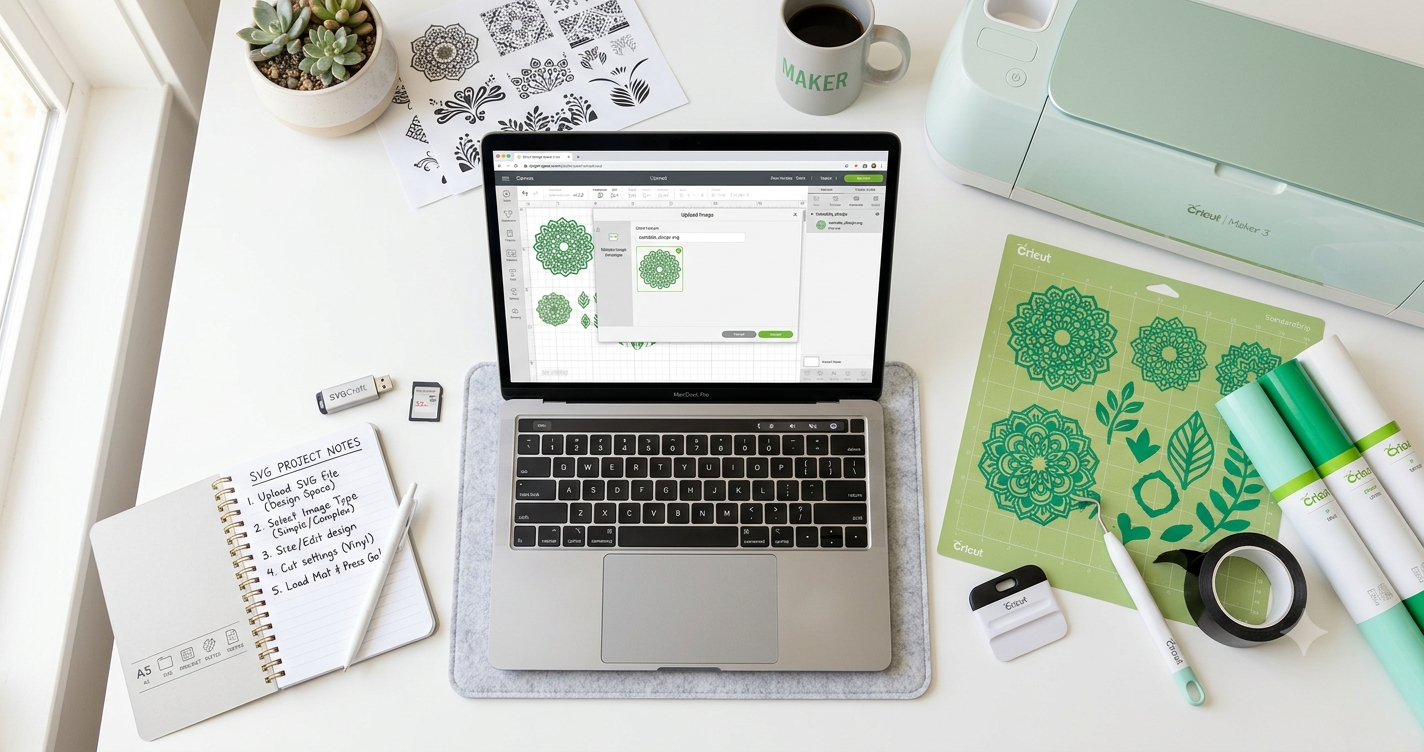
- Upload Your SVG: In the upload panel, click on the “Upload Image” button. You’ll be prompted to select an SVG file from your computer. Choose your desired file and click “Open.”
- Prepare Your Image: After selecting the file, Cricut Design Space will display a preview. Click “Save” to add the file to your library.
- Insert SVG into Canvas: Go to your “Recently Uploaded” images, select the SVG, and click “Insert Images” to add it to your design canvas.
- Adjust and Prepare for Cutting: Resize and position your SVG design within the canvas as needed. Use the “Edit” panel to make precise adjustments.
- Connect to Your Cricut Machine: Ensure your Cricut machine is connected via USB or Bluetooth. Select your machine from the drop-down menu.
- Send to Cut: Once satisfied, click “Make It” to start the cutting process. Follow on-screen instructions to complete your project.
Mastering how to upload SVG files to Cricut Design Space opens up endless creative possibilities for your shop or personal crafts.
Why Won’t My SVG File Upload to Design Space?
Sometimes, you might encounter issues when uploading SVG files. Here are common reasons and solutions:
- File Size: Ensure your SVG file is not too large. Try optimizing or compressing it before uploading.
- File Format: Double-check that your file is indeed in SVG format. Cricut Design Space only supports specific file types.
- Browser Issues: Update your web browser or try a different one if you face difficulties.
- Corrupted Files: If the SVG file is corrupted, recreate or redownload it.
Tips for Getting the Best Results
Organize Your Files: Keep your SVG files well-organized by categorizing them into folders. It saves time during uploads and selections.
Use High-Quality SVGs: Ensure the SVG files are of high quality to prevent issues during cutting. Check out our Halloween SVG bundle for inspiration.
Preview Before Cutting: Always use the preview option to double-check the design before sending it to cut. It helps avoid errors.
Experiment with Materials: Different materials might need slight adjustments. Test with small cuts to find the perfect settings.
Now that you know how to upload SVG files to Cricut Design Space, you can easily repeat this process for any vector graphic or font monogram.
Frequently Asked Questions
Can I use SVG files with all Cricut machines?
Yes, SVG files are compatible with all Cricut machines that support Cricut Design Space, including the Cricut Maker and Explore series.
How do I troubleshoot SVG file errors?
Ensure your SVG is not too complex or large. You may need to simplify the design or reduce the file size.
What’s the best format for Cricut Design Space?
SVG format is ideal for Cricut Design Space as it provides clean and scalable designs perfect for cutting.
Can I edit SVG files in Design Space?
Yes, you can resize, recolor, and make simple edits to SVG files within Cricut Design Space.
Where can I find quality SVG files?
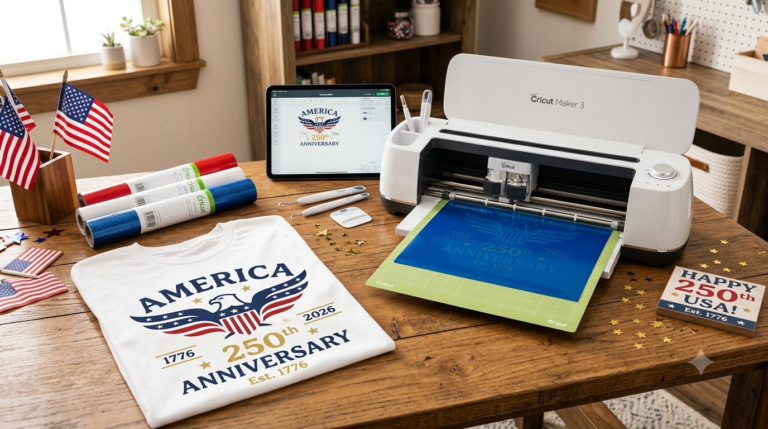
For a variety of themes and projects, visit our collection of America 250th anniversary SVG files for Cricut on our site.
Final Thoughts
Uploading SVG files to Cricut Design Space can seem daunting at first, but with this guide, you’ll be crafting like a pro in no time. Whether you’re creating for a special holiday or exploring new projects, having access to a wide range of SVG files can make your creative journey even more exciting. Don’t forget to explore premium designs on Creative Fabrica for endless inspiration.
This post contains affiliate links. If you use these links to buy something, we may earn a commission. Thanks for your support!